Small tools.
One app.

Eighteen small tools for your Mac — windows, audio, screen, files, typing and more — in one menu bar app. Turn on only the ones you need. New tools arrive as plugins, not as one more app.

microTools

Small tools
for your Mac.

Powered by microbians microbians.com

Eighteen tools inside.
More to come.

Each plugin has its own settings, and its own menu bar icon or a place in microTools’ menu. Switch them on and off in Settings › General; new ones install from there with one click.

See it in
45 seconds.

The menu bar, the Settings window and every plugin at work.

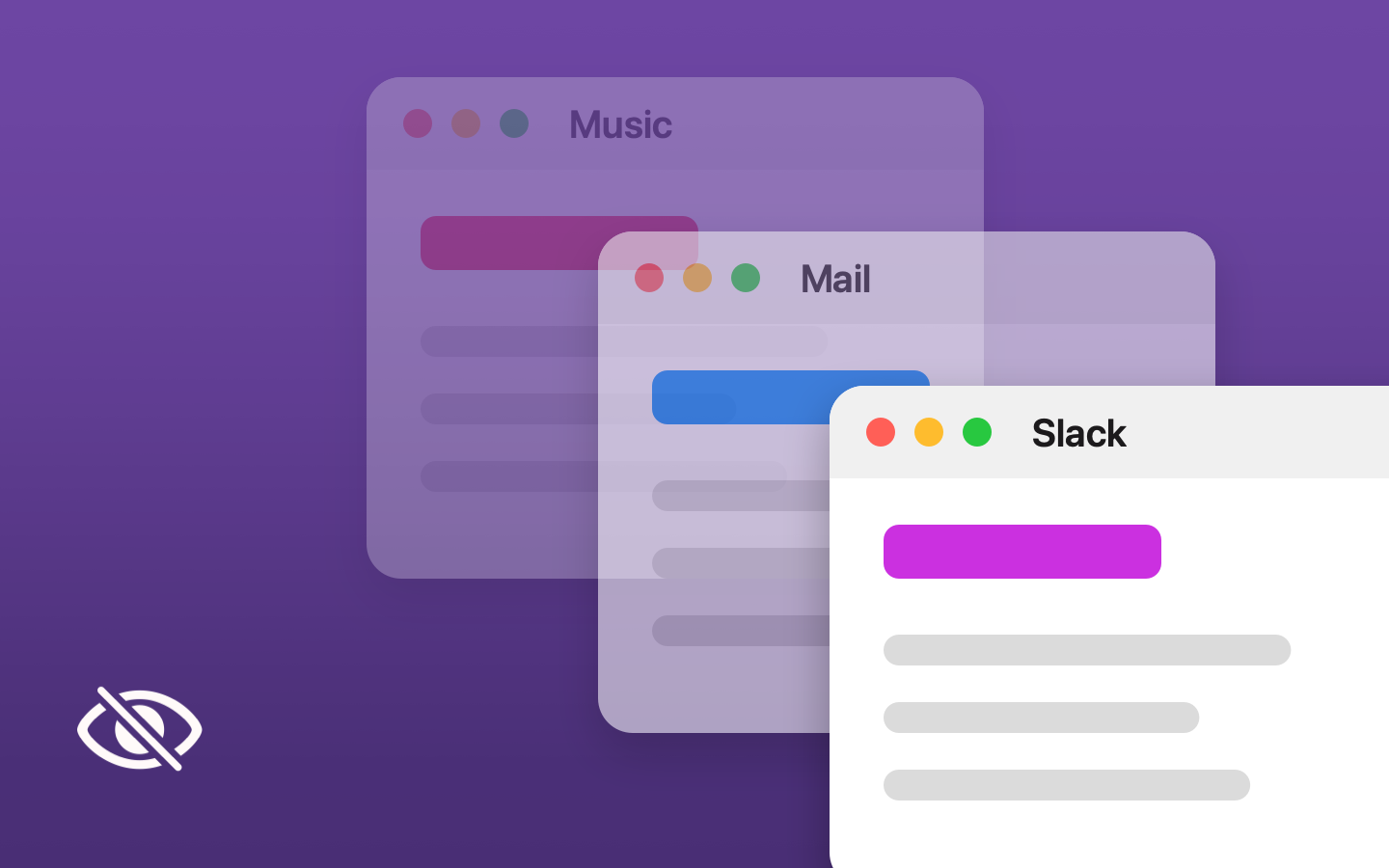
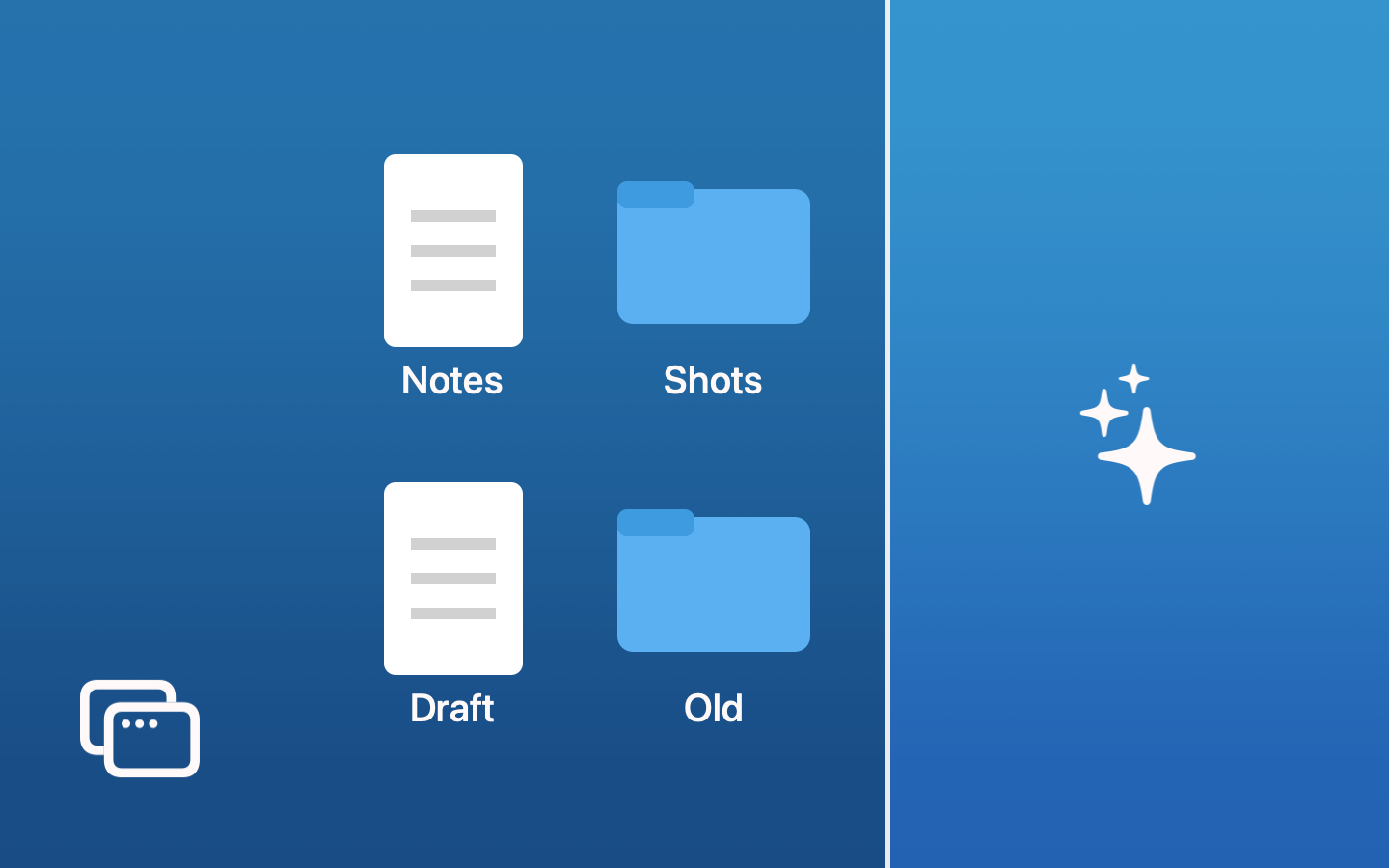
hideOnStart

Log in to a
clean desktop.

Pick the apps once
Sync helpers, updaters, chat apps: anything that throws a window at you every time your Mac starts.
Hidden at login
For the time you choose, from 30 seconds to 10 minutes, their windows are hidden as they show up.
Then out of the way
Its menu bar icon can show only while it watches.
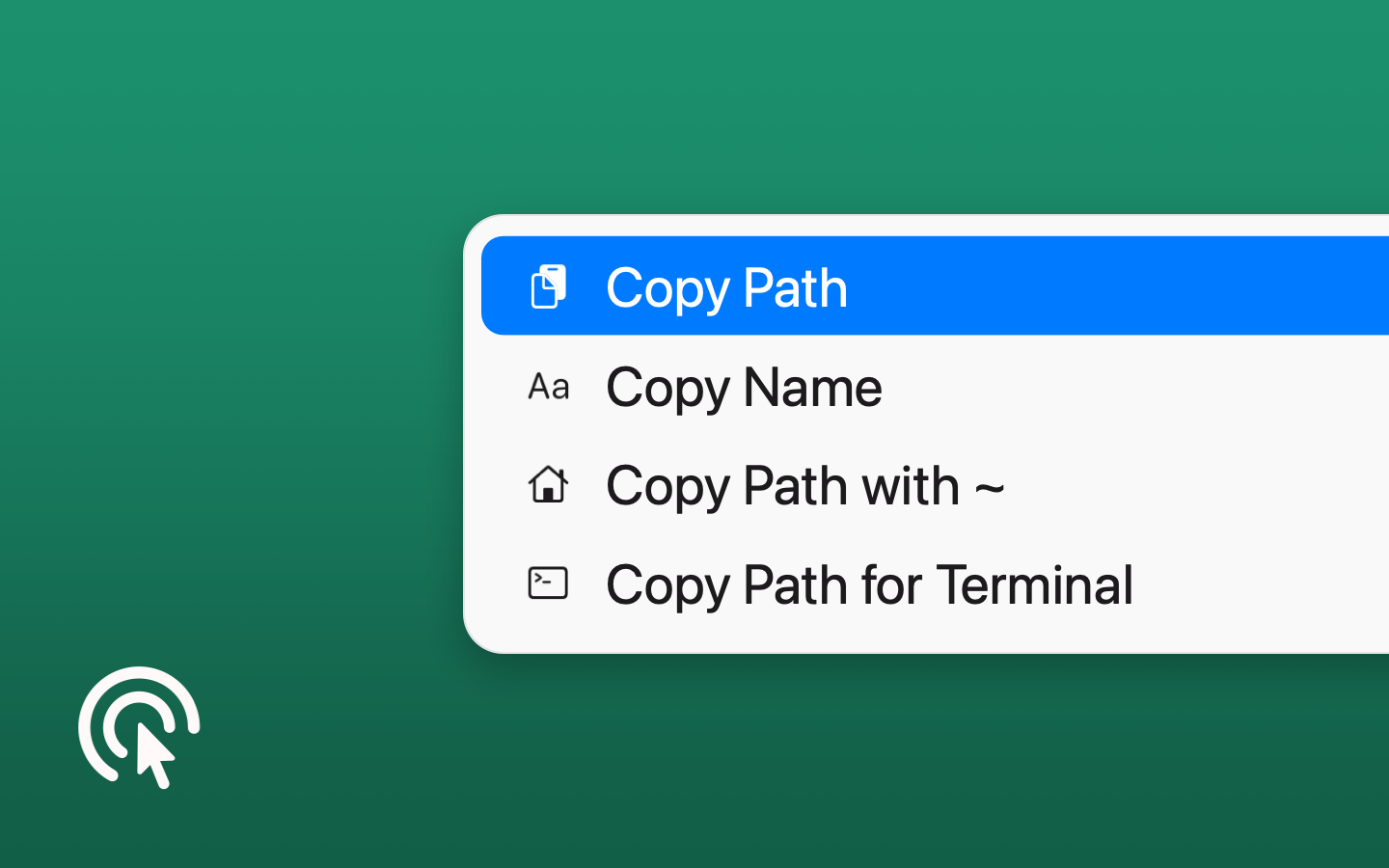
rightClick

Your right-click,
supercharged.

  • Copy Path
  • Copy Name
  • Copy Path with ~
  • Copy Path for Terminal
  • Copy as file:// URL
  • Copy Contents
  • Copy SHA-256
  • New Text File
  • Open in Terminal
  • Make Symbolic Link
  • Remove Quarantine
  • Hide/Unhide
  • Remove Photo Metadata
  • Add to Music in Reverse Order
  • Show/Hide Hidden Files
Everywhere
In Finder’s right-click menu, and as Services in every other app.
Your menu, your way
Switch tools on or off, star your favorites to the top level.
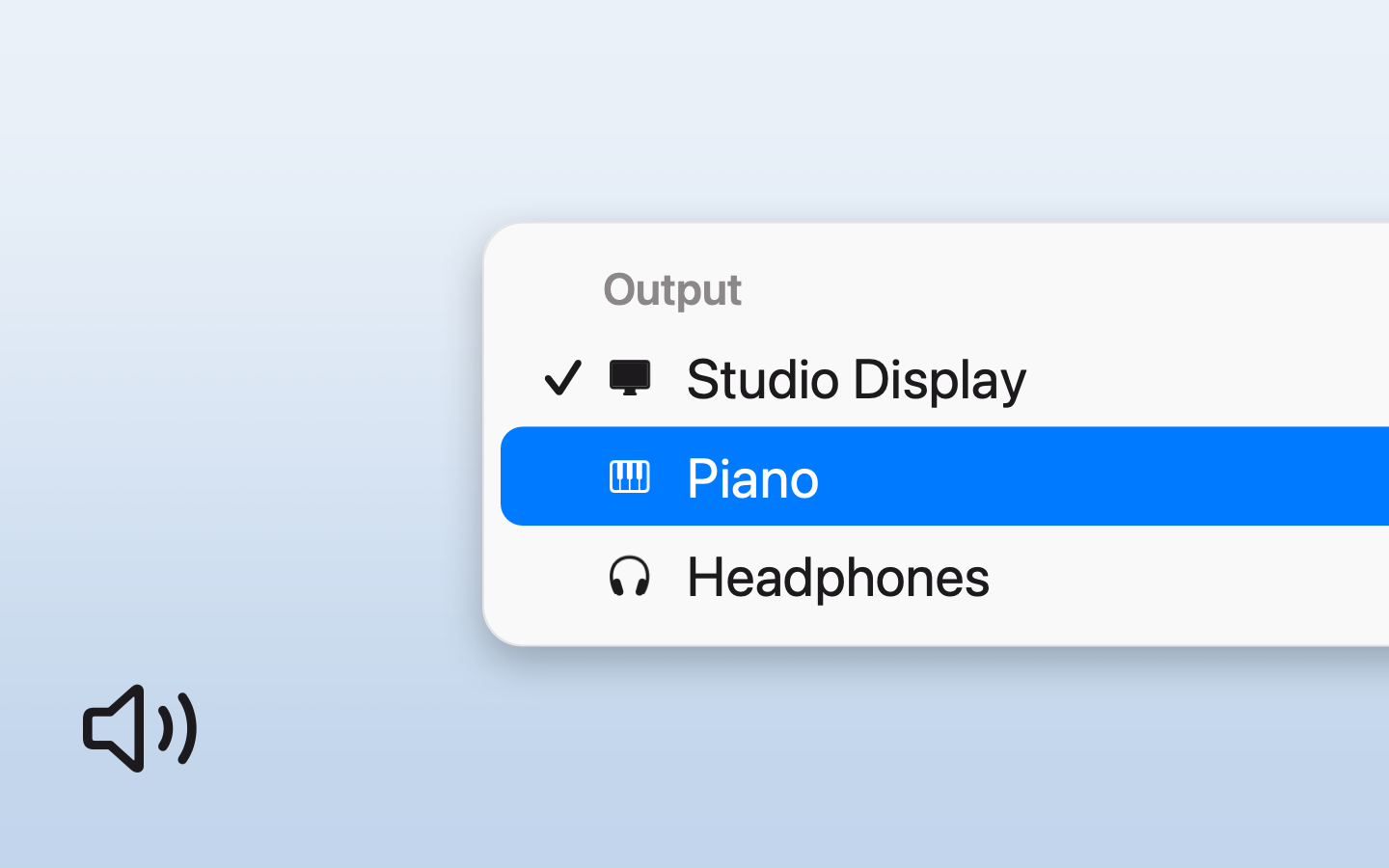
audioSwitch

Sound where
you want it.

Devices
Rename them, give them an icon, set volumes and mute from the menu, hide the ones you never use and give each a shortcut.
Profiles
Output, input, levels and microphone mute in one click.
Rules
Switch by themselves when an app, a web page, the camera or a device turns up — and switch back when it ends.
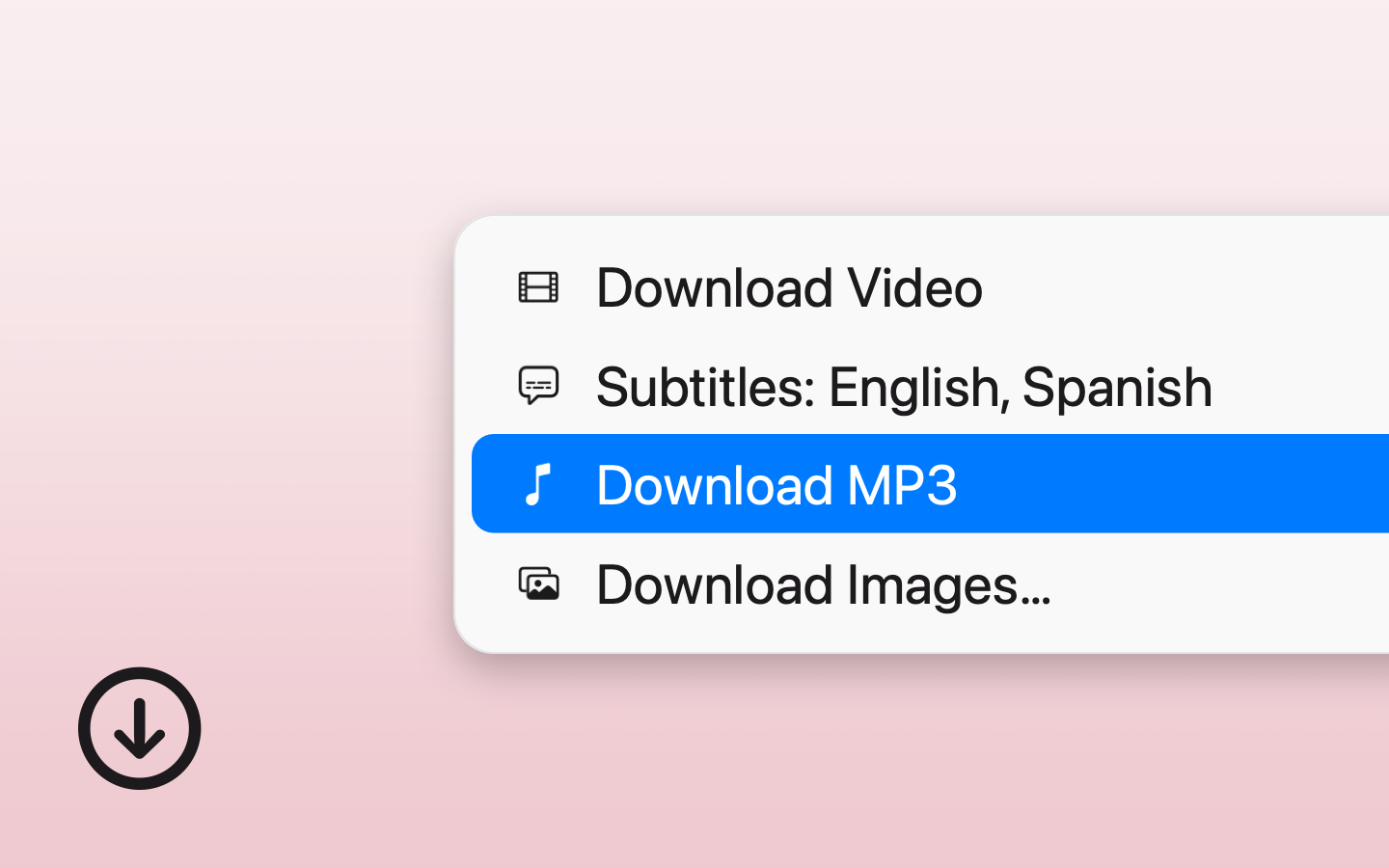
mediaGrab

Save it from
the page.

Video
From the front tab in Safari, Chrome, Edge, Brave or Arc, up to the best quality, with subtitles.
MP3 with tags
Square cover, and title, artist and album found by the song’s sound.
Images
A grid of every image on the page: pick the ones you want, or all of them.

Uses the free yt-dlp and ffmpeg: microTools downloads them for you the first time and keeps yt-dlp up to date. Download only what you have the right to.

shotGrab

Read anything
on your screen.

Text and QR codes
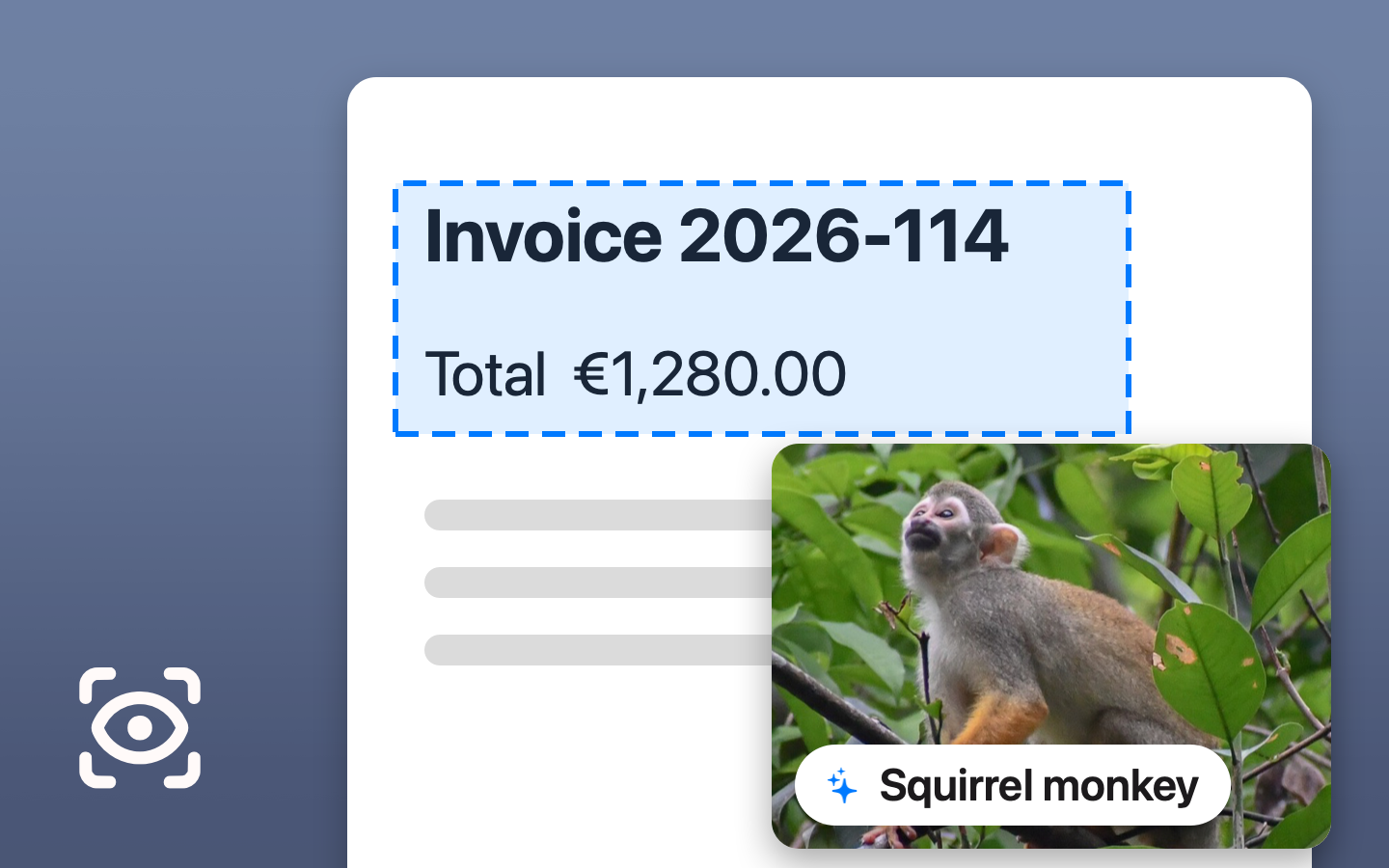
Drag over images, videos, PDFs or apps that won’t let you select: the text is copied, read on your Mac. Codes copy what they hold.
Identify Image
Apple Intelligence tells you in a few words what the area shows, and copies it.
Search Image on the Web
The area you select, searched with Google Lens, Bing or Yandex.
Screenshots with names
Each new one is named by what it shows instead of “Screenshot” and the date. Keep the date if you like; undo from the menu.
colorPick

Any color,
by its name.

Pick it
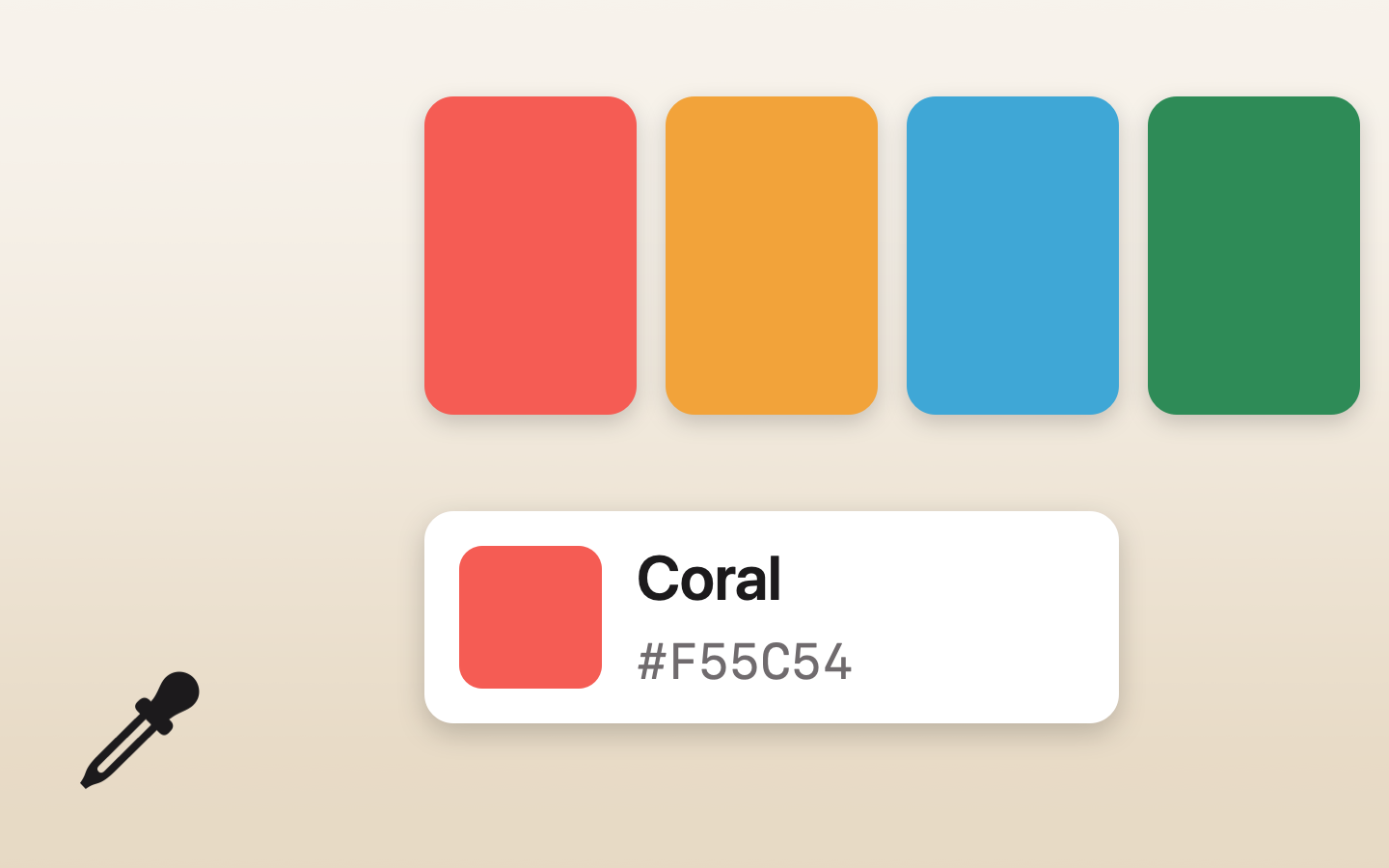
Anywhere on screen, from the menu bar or a keyboard shortcut. It tells you its name.
Copied as you need it
HEX, RGB, HSL, OKLCH or Swift code. The last colors stay in the menu to copy again.
Palettes
Keep colors under a name and copy a whole palette as CSS variables, JSON or a list.
Palette from an image
Select an area of the screen or choose an image: its main colors become a palette, named by Apple Intelligence.
keepAwake

Awake while
you need it.

For a while
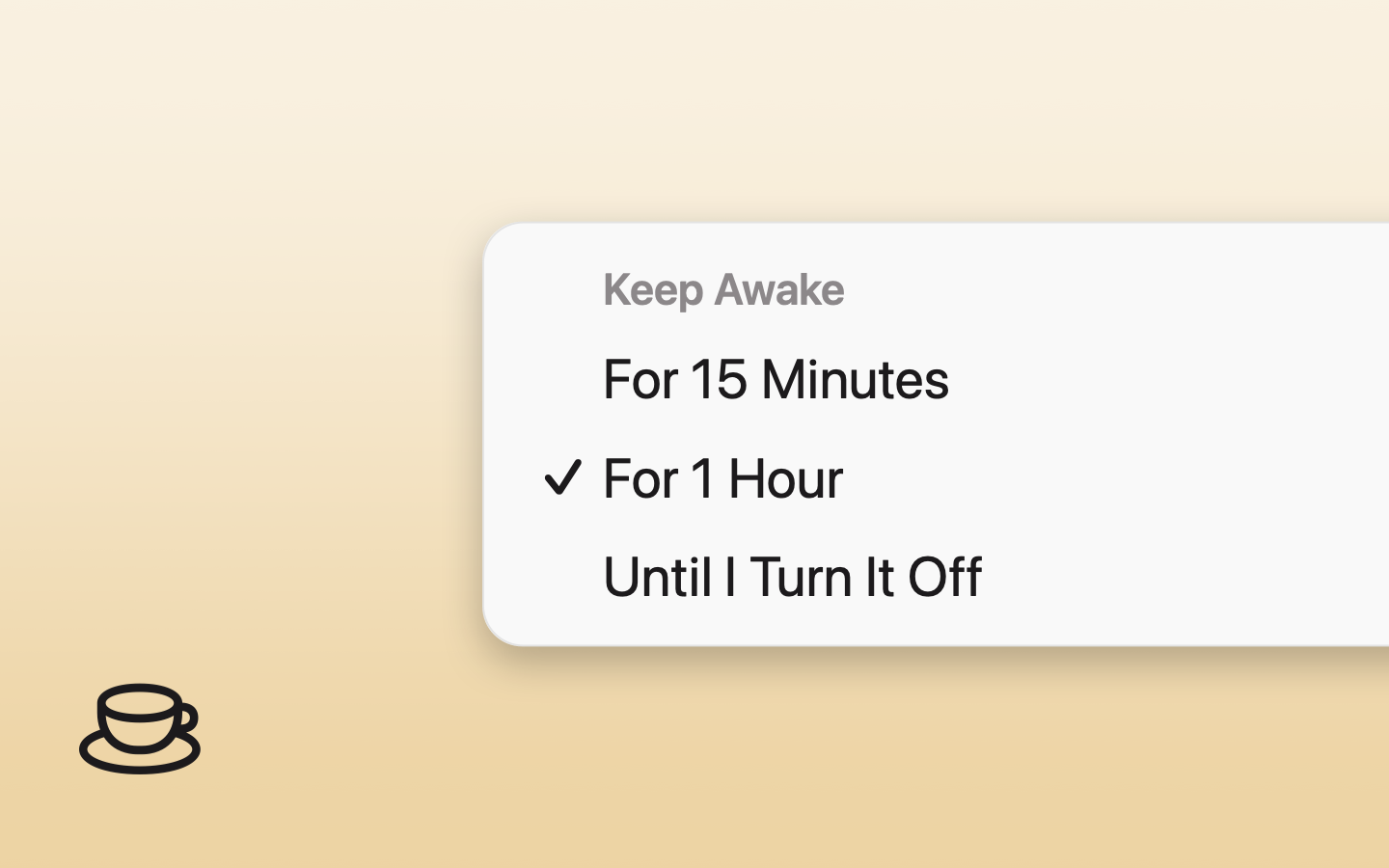
15 minutes, an hour, a few hours or until you turn it off, from the menu bar or a shortcut; the icon shows the time left.
Rules
Awake by itself while an app or a web page is open, the camera or microphone is in use, it runs on battery or an external display is connected.
Battery first
Keeps the display on too if you want, and lets the Mac sleep when the battery runs low.
deskClean

A clean desk,
in one click.

Icons and widgets away
One click or a shortcut, without restarting Finder: your wallpaper covers them.
Rules
Hidden by themselves while an app or a web page is open, the camera or microphone is in use, or an external display is connected — and back when it ends.
Do Not Disturb too
Through a shortcut of the Shortcuts app. Everything comes back when you switch it off or quit.
batteryCare

Every battery,
at a glance.

Charge limit
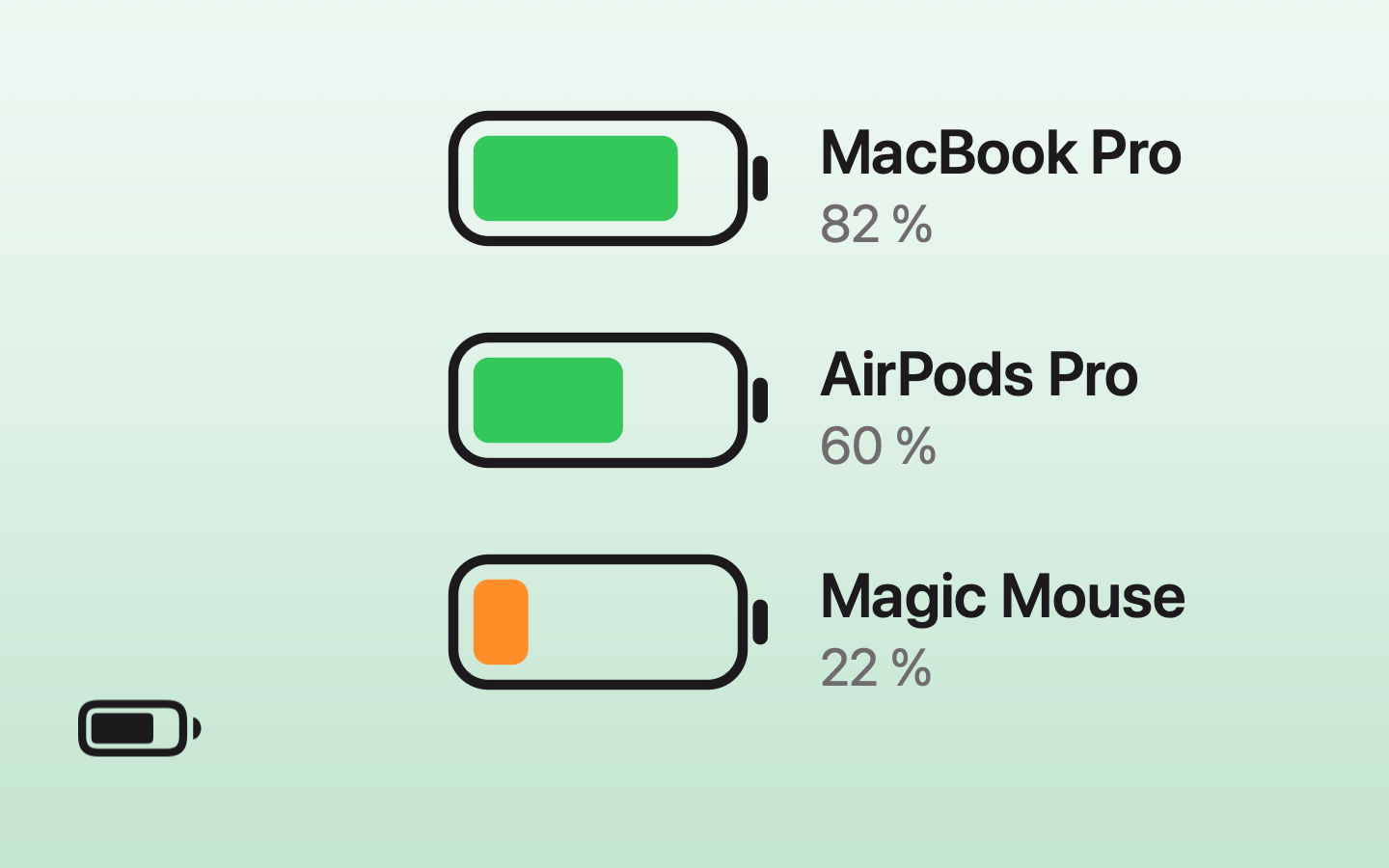
A notice when your Mac reaches your limit, 80 % by default, so you can unplug it and keep the battery healthy — and when it runs low.
Bluetooth devices
Keyboard, mouse, trackpad and AirPods with their battery in the menu.
Low before it’s empty
A notice when one gets low, with a threshold of its own for each device.
macTweaks

Hidden settings,
no Terminal.

Switches
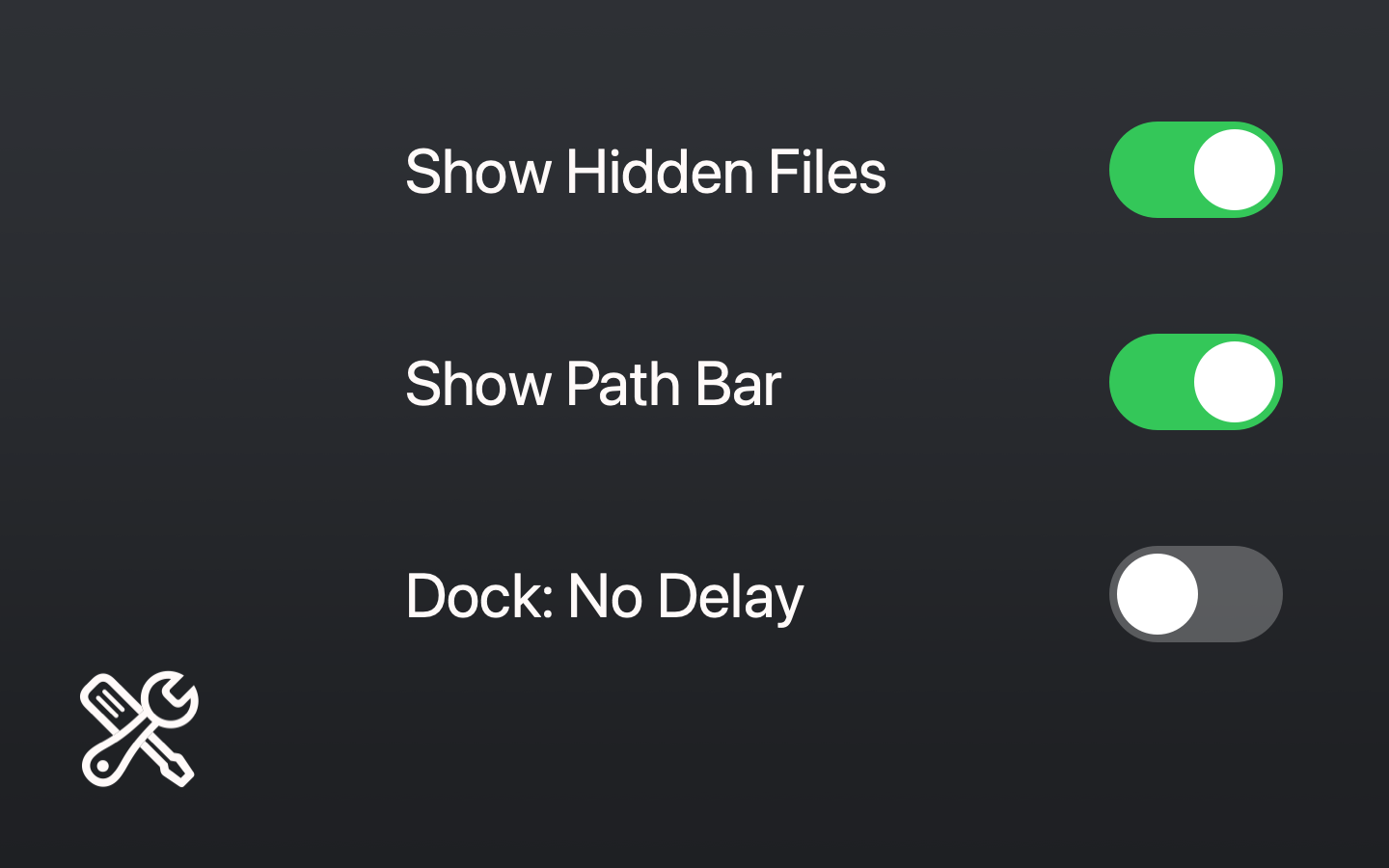
Hidden files, no .DS_Store on other drives, Delete goes back in Safari, emoji with “:”, apps from anywhere.
Repairs
Quick Look, icons, “Open With”, Spotlight, home folder permissions, Time Machine local snapshots, and apps: remove quarantine, open another copy, reset settings with a backup.
Nothing hidden
Each one says what it changes and how to undo it, shows the exact commands first, and asks for your password only when macOS needs it.
habitTrack

One more glass,
one click.

A day or a week
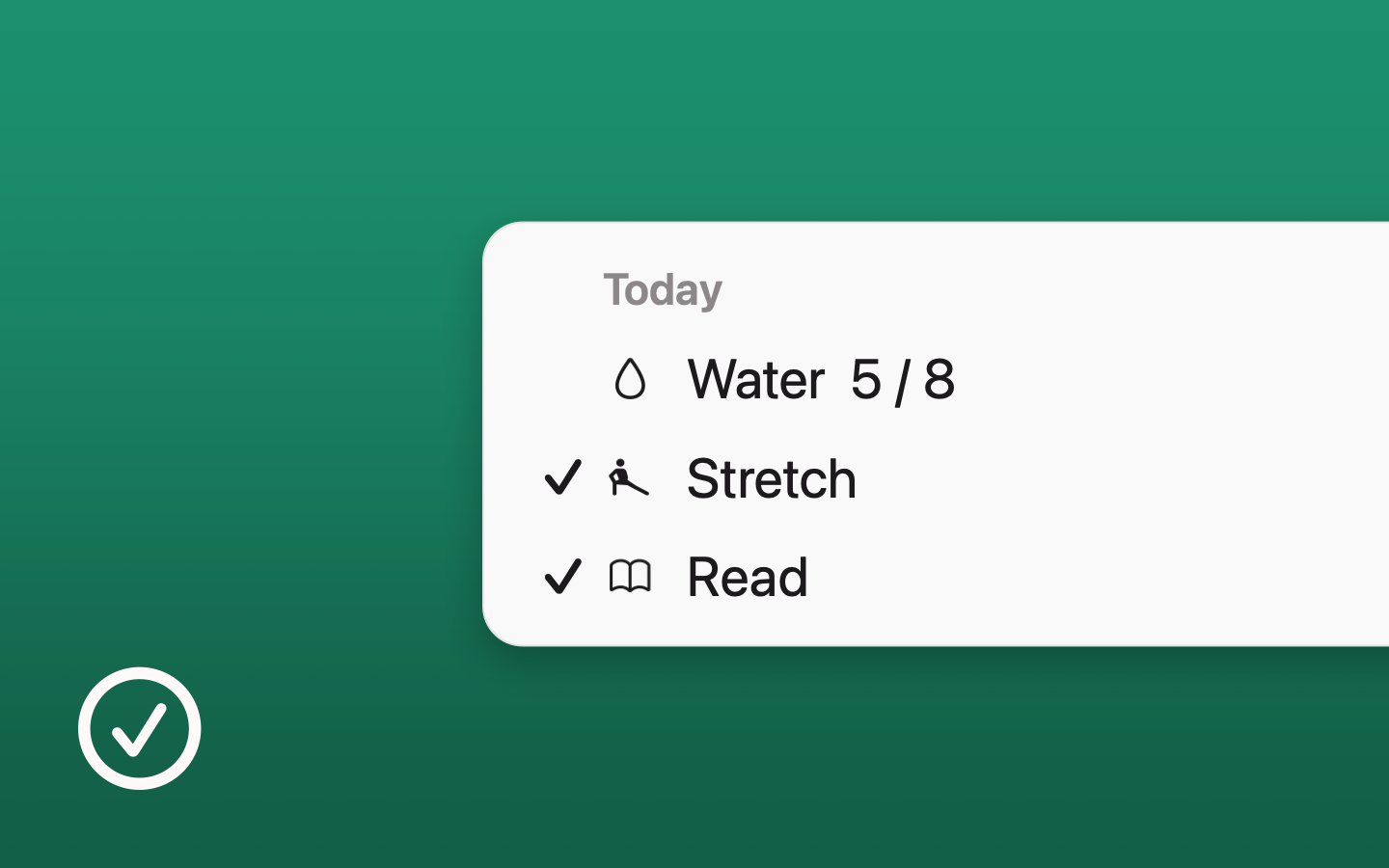
Drink 8 glasses of water a day, draw 5 times a week: each habit with its own icon and color.
From the menu bar
One click marks one more; the icon’s ring shows how much of today is done.
History and streaks
Each habit keeps its history and streak, and can remind you at a time of day while it is not done.
typeDrop

Type less,
in any app.

Snippets
An abbreviation becomes your text, with today’s date, the time, the clipboard and where the cursor lands.
Emoji by name
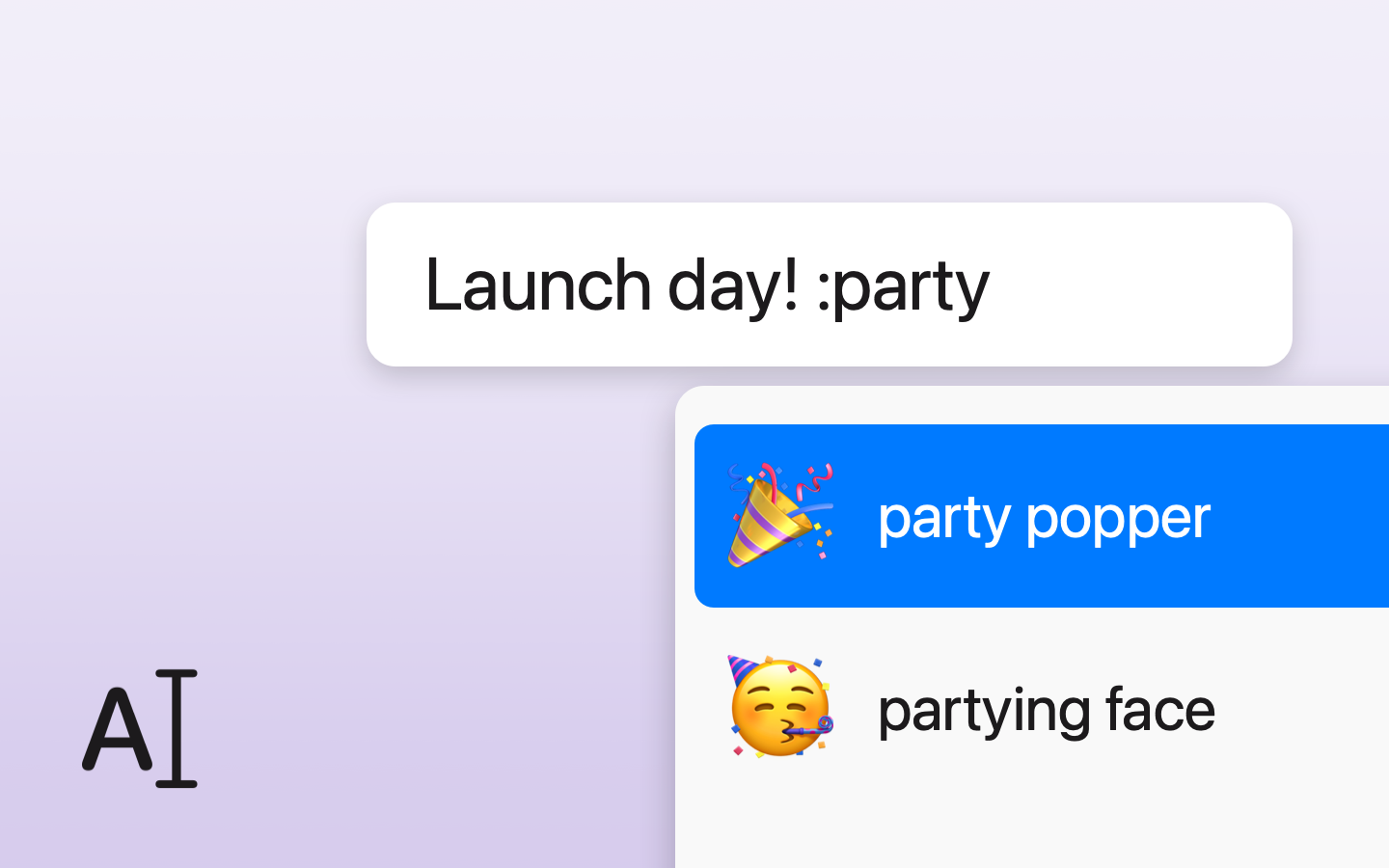
Type “:” and a name, pick it from the list without leaving the keyboard.
GIFs
Search one with “:gif”, a shortcut or the menu, and it is pasted where you are typing.
typeDrop offering emoji for “:party”
autoMount

Your disks,
always there.

At login
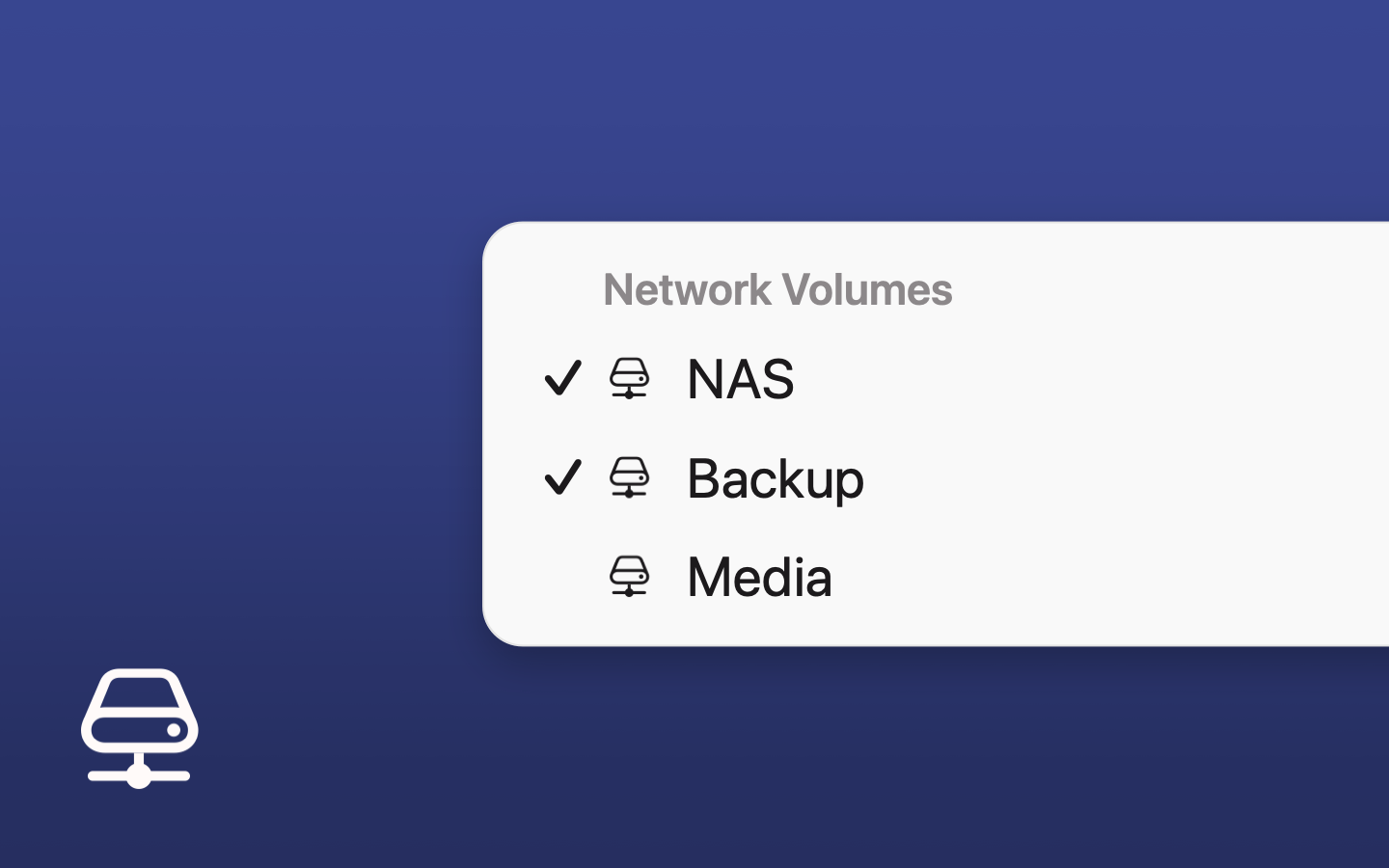
A NAS, another Mac’s disk or a WebDAV cloud server, mounted when microTools starts.
Back on the network
Checked every minute and after sleep: mounted again as soon as it is reachable.
Always the same place
Once, at /Volumes/<name>: copies such as <name>-1 are unmounted, so links and apps keep working. Passwords come from the keychain.
autoMount’s menu with network volumes
openPorts

What’s running,
on which port.

Every server
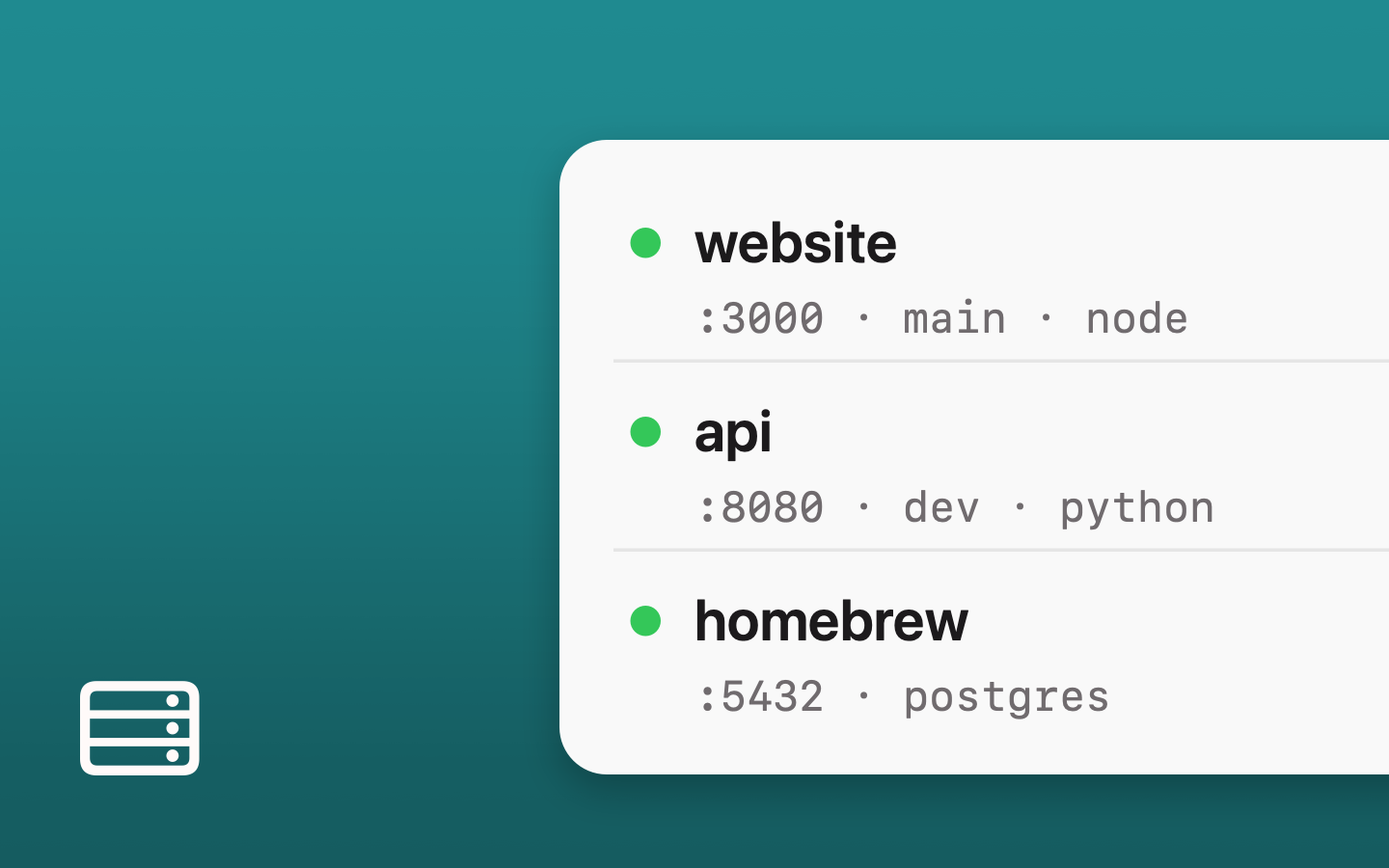
Dev servers, databases and proxies, with their project, Git branch, ports and how long they have been running.
One click
Open a port in the browser, show its folder in the Finder, copy its URL.
Stop them
One or all at once, when a server is left behind.
openPorts’ menu with three servers
focusDim

One window
in the light.

Everything behind, dimmed
Other windows and the desktop darken, on every screen; the menu bar and the Dock stay as they are.
As dark as you like
From a touch to almost black.
Nothing in the way
Clicks still reach the dimmed windows, and it needs no permission.
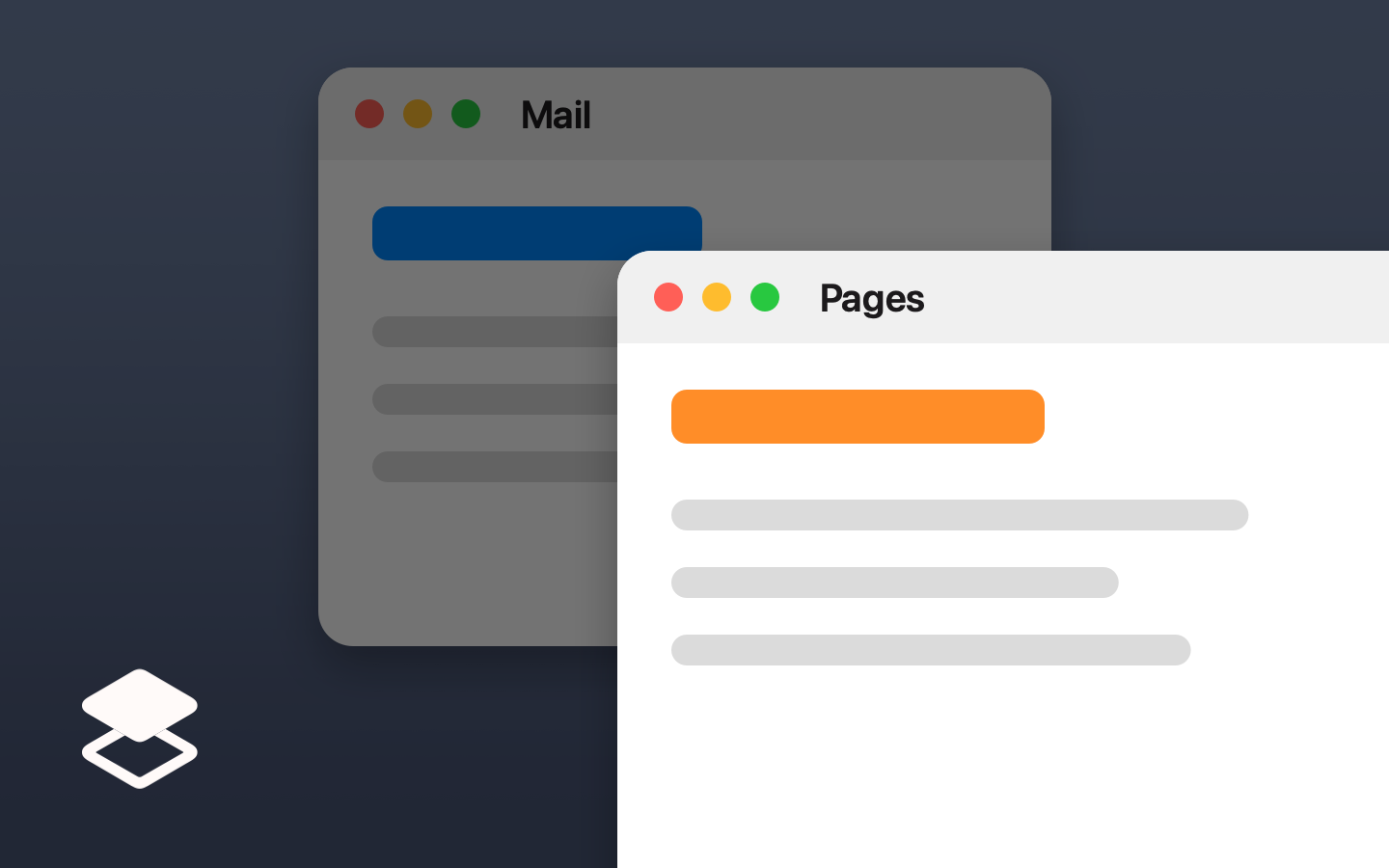
A window in front, the one behind it dimmed
smoothScroll

A wheel that
glides.

Smooth, like a trackpad
Each notch of the mouse wheel glides instead of jumping; spin it fast and it goes farther. Trackpads and Magic Mouse are left as they are.
Its own direction
Reverse the wheel without changing the trackpad.
Keys and apps
Hold a key to scroll faster, sideways or without smoothing; leave the apps you choose as they are.
A page gliding as it scrolls
appSweep

Delete the app,
and what it left.

When you delete an app
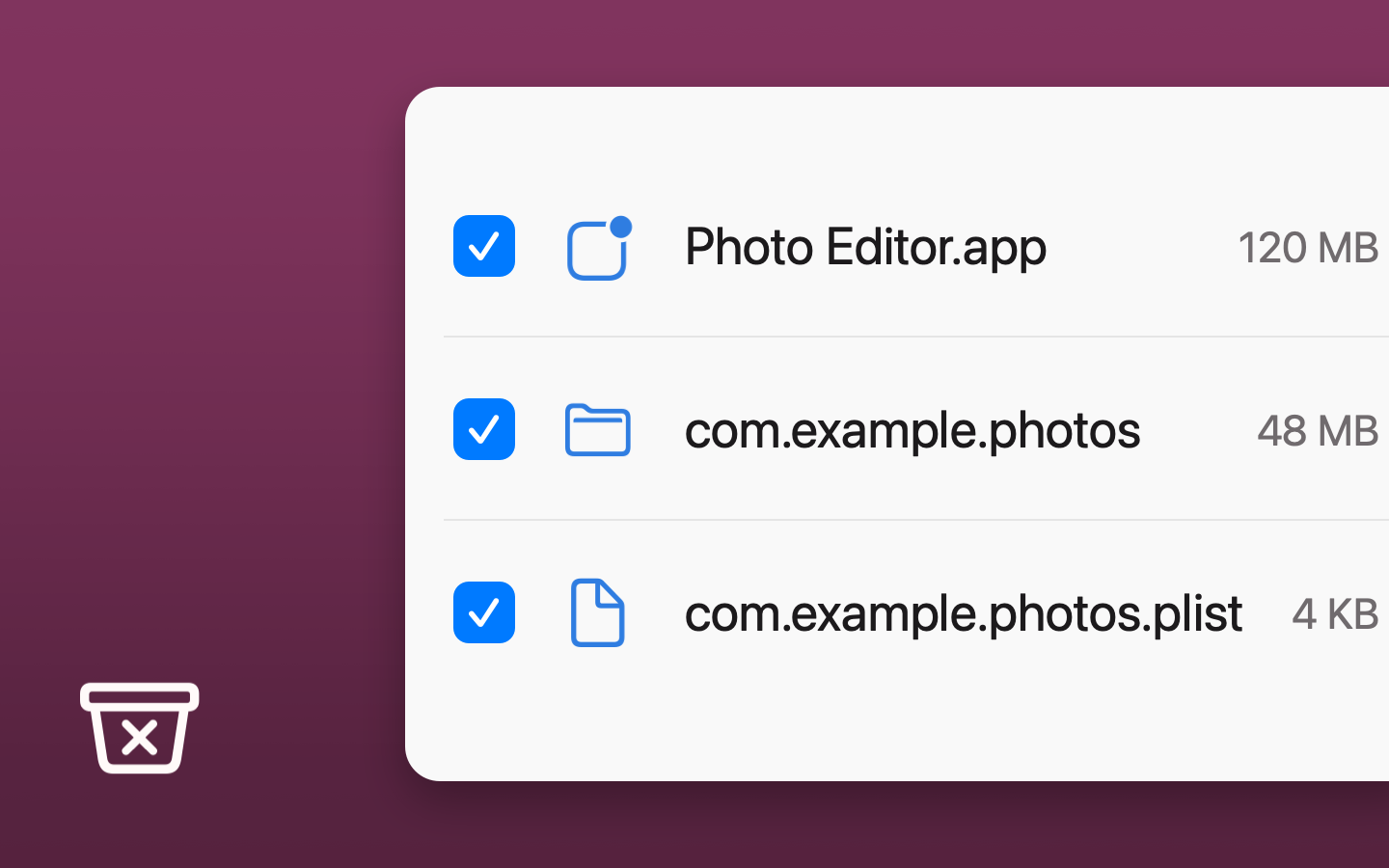
appSweep shows the settings, caches, containers, login items and install receipts it left behind.
Only what is its own
Files named exactly after the app, never another installed app’s; you tick each one.
To the Trash
Nothing is deleted: everything goes to the Trash. Uninstall an app still installed the same way.
A deleted app’s leftover files, ticked

Write your
own tool.

A plugin is a .microplugin folder: a manifest that tells microTools what to show, and the code. microTools draws its settings, its menu, its shortcuts and its notices — you write what it does.

JavaScript plugins

Anyone can write them. An AI too.

They run in their own sandboxed JavaScriptCore context and reach the Mac only through the microtools API, with the permissions you grant each one. Double-click the folder to install it.

// main.js
microtools.register({
  start() { microtools.onShortcut('copy', copy) },
  menu() {
    return [{ title: 'Copy Date',
              symbol: 'doc.on.clipboard',
              action: copy }]
  }
})
Plugin format and API → Example: dateStamp → Example with files: notesToFile →
The API

Settings, menus, shortcuts, the web, the shell, files, AI.

setting / setSettingToggles, text, menus, folders and shortcuts, drawn by microTools. onShortcutGlobal keyboard shortcuts. notice / activityA tooltip and a progress ring on its menu bar icon. frontTabThe page in the front browser tab. fetchhttp and https requests. aiApple’s on-device model. shellCommands, after asking you once. readFile / writeFileFiles, only in the folders you grant it. route / callmicrotools:// URLs, and plugins calling each other.
Every call →
Build it with an AI

Describe the tool. Hand it the guide.

A step-by-step guide written for AI assistants: give it to Claude or any other with what you want, and you get a working plugin folder back.

Build a microTools plugin that
copies today’s date. Follow
docs/for-ai.md.
The guide for AIs →
Swift plugins

Native, linked against MicroKit.

The official plugins are Swift bundles built on MicroKit, the framework inside microTools. They run with microTools’ own rights, so it only loads Swift plugins signed by microbians.

Every official plugin is published here as a signed, notarized release and listed in catalog/index.json, which microTools reads for Settings › General › More Plugins.

Releases →